UI Map
A quick-lookup reference for every named UI element. For deeper context on what each surface does and why it exists, follow the cross-links to the concept and how-to pages.
For release notes and self-serve documentation, visit resource.consumr.ai.
Top-level navigation
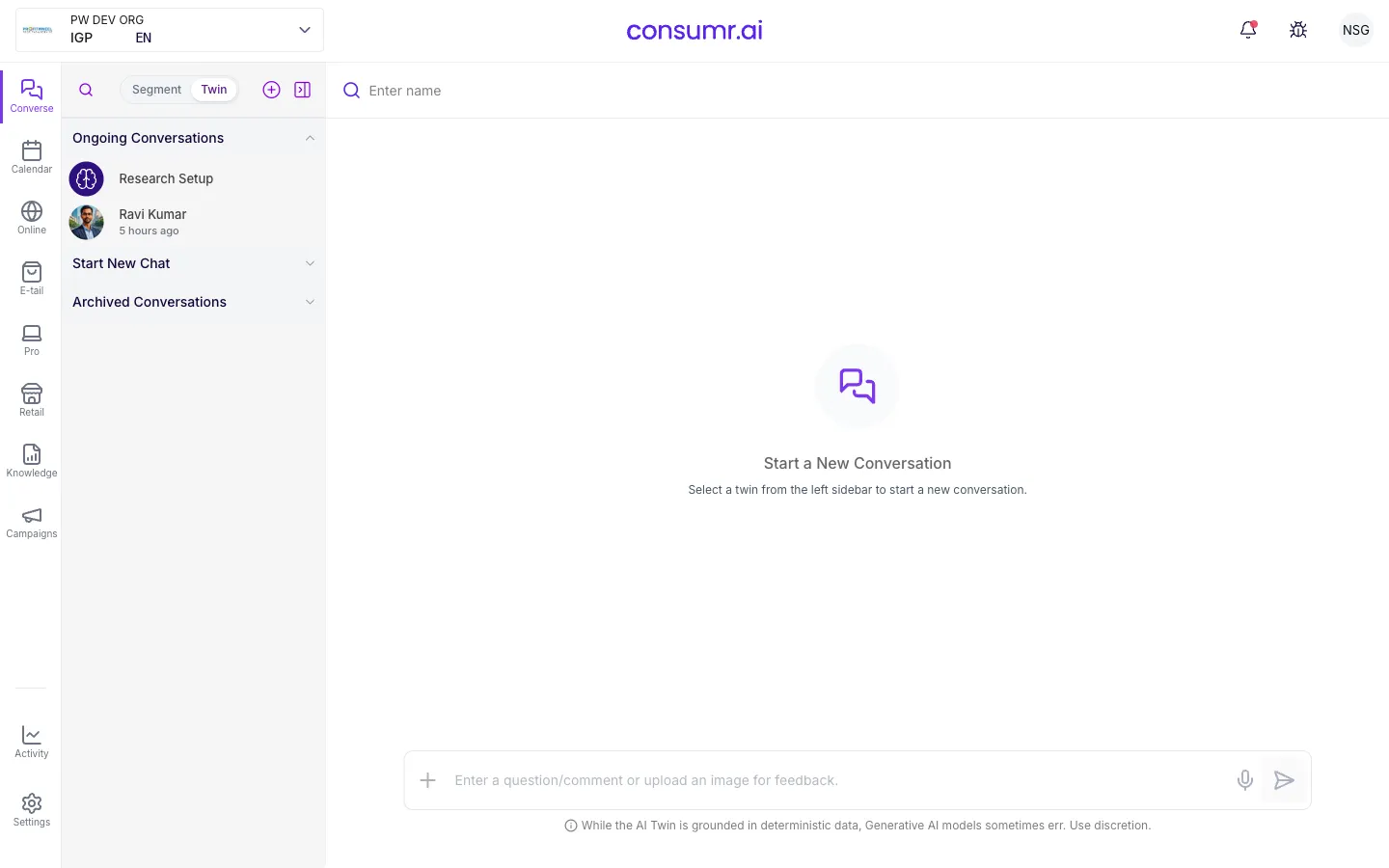
Section titled “Top-level navigation”Converse — The main workspace, styled like a team-chat interface. Left column shows all your AI twins and any open chats; selecting a twin opens the conversation view.
Calendar — Navigation shortcut for scheduling or checking dates within the platform. Also used as a quick way to trigger a hard refresh (see below).
Research setup / new research study
Section titled “Research setup / new research study”The entry point for creating segments, building twins, and launching surveys or studies.
Recommend button — Inside the segment creation flow; click to have the platform auto-generate a segment definition based on your portfolio context. Removes the need to write definitions from scratch.
Segment name field — Where you name the cohort you are defining; appears in the twin persona and all downstream reports.
Omni box — The editable input panel showing the keywords, audience signals, and categories the recommendation engine has selected. You can add, remove, or replace items here before running. See Inputs & Audience Sizing.
Audience-size indicator — Shows whether the selected audience is:
- Green (Ideal) — Best balance of affinity and reach; the target state.
- Blue (Broad) — Large audience, generic results; acceptable but expect less precise insights.
- Orange/Yellow (Niche) — Small but might still succeed; higher failure risk.
- Red (Insignificant) — Below ~500,000 people; the run will fail.
Mindset sliders — The six psychographic dials (brand attachment, emotional affinity, purchase intent, category awareness, familiarity, skepticism) set during twin creation. Adjust them to characterize the cohort’s relationship with the brand or category before building. See AI Twins.
Date range — Controls how recent the social signal data must be. Keeping this current (e.g., last 21 days) ensures the twin reflects the audience as it is now, not months ago.
Exclusions — Audience signals or competitor terms you remove so they don’t pollute the input. The recommendation engine often pre-fills these; review and adjust before running.
Twin-vs-respondents selector — Chooses the output type: Twins (full AI twin with memories, for qualitative research) or Respondents (light/mini twins at scale, for surveys). Choose twins first; you can always create respondents from a twin later. See Respondents & Extrapolation.
Converse view (twin conversation)
Section titled “Converse view (twin conversation)”View details — Opens the twin’s asset panel showing the three underlying reports (behavior, intent, mentions) and the persona.
Delete — Removes a twin or segment. Blocked while the twin is actively being built to prevent partial deletion. If you try during creation, the platform will reject the action.
Thumbs up / thumbs down — Feedback controls on conversation responses. The model learns from these to improve future responses within that twin’s context.
Trace — Expandable section showing which data sources informed a given response; useful for understanding what the twin is drawing on.
Shareable visual card — A formatted, shareable summary of a response; useful for presenting twin output to stakeholders without sharing a raw conversation.
Reasoning mode toggle — Switches between:
- Practical — Rational, tangible reasoning (financials, features, trade-offs)
- Emotional — Affective, identity-driven reasoning
- Reflection — Self-introspection; the twin examines its own stated position
Role selector — Controls who you are as the questioner:
- As me — You are a representative of your portfolio brand; the twin always answers in that brand’s context.
- As category researcher — You are a neutral surveyor; the twin answers without brand priming.
Create another twin (drill-down) — Available after a segmentation survey result; creates a sub-twin from within a segment to drill deeper into a specific consumer group.
Known UI behaviors and workarounds
Section titled “Known UI behaviors and workarounds”Incomplete-segments yellow banner — Appears when a segment creation was started but not completed. Intended to let you resume the flow. Currently this resume flow has a known failure; check Roadmap & Known Issues for status.
Hard-refresh recovery — If conversations or data appear to be missing, go to the top-right account icon and use the built-in refresh rather than the browser refresh. The platform recommends this as the recovery step for users unfamiliar with hard refresh shortcuts.
Delete blocked mid-build — Attempting to delete a twin while the platform is creating its reports will be rejected. This is by design; wait until the build completes.
Research output surfaces
Section titled “Research output surfaces”Distribution layer — The view shown after survey completion displaying bar-chart breakdowns of how respondents answered each question. The foundation of quantitative results.
Brand funnel view — Within brand track results; shows awareness → familiarity → consideration → preference → intent → endorsement for each tracked brand.
Brand perception metrics — Radar-style breakdown of how each brand scores on attributes like customer support, innovation, premium feel, trust, and value for money.
90-day intent — A locked survey question asking how likely respondents are to purchase from each tracked brand in the next 90 days.
Quadrant view — A planned layout showing mission outcomes and emotional job-to-be-done axes for a segment.
Completion and notifications
Section titled “Completion and notifications”Email on completion — When a twin build or large research run finishes (especially the audience-panel-brief method which creates ~10,000 respondents), the platform sends an email notification with a link back to the results.
Get pricing — A call-to-action for running larger-scale studies; pricing scales with the number of respondents.
Digital study
Section titled “Digital study”Digital study — An AI-powered creative testing surface where you upload an image or ad creative and receive structured feedback on how the target segment reacts to it. Action items are included. Part of the concept testing suite. See Test Creative & Concepts.